
Where did your download go? Many people have a hard time finding their downloaded files on iPad and iPhone. If you are accustomed to traditional desktop download folders, you may be looking for downloads the wrong way. Unlike macOS, Apple's mobile operating system categorizes file types according to content. So, your favorite videos, music, and PDF files may be in different locations.
While this helps with easy access from native apps, some files hide in unfamiliar locations. But not anymore. Let’s explore where that file may be hiding in your device.
Where to find your downloads on iPhone
The location of your download depends on the app you used to download your files and the file type. The download may be in these locations.
The Files app
Your iPhone has a dedicated file management utility called the Files app. The app consolidates all files from your iCloud Drive, local storage, and third-party cloud services like Dropbox and Google Drive. Here, you can find a location for web downloads. Follow these steps to access the folder:
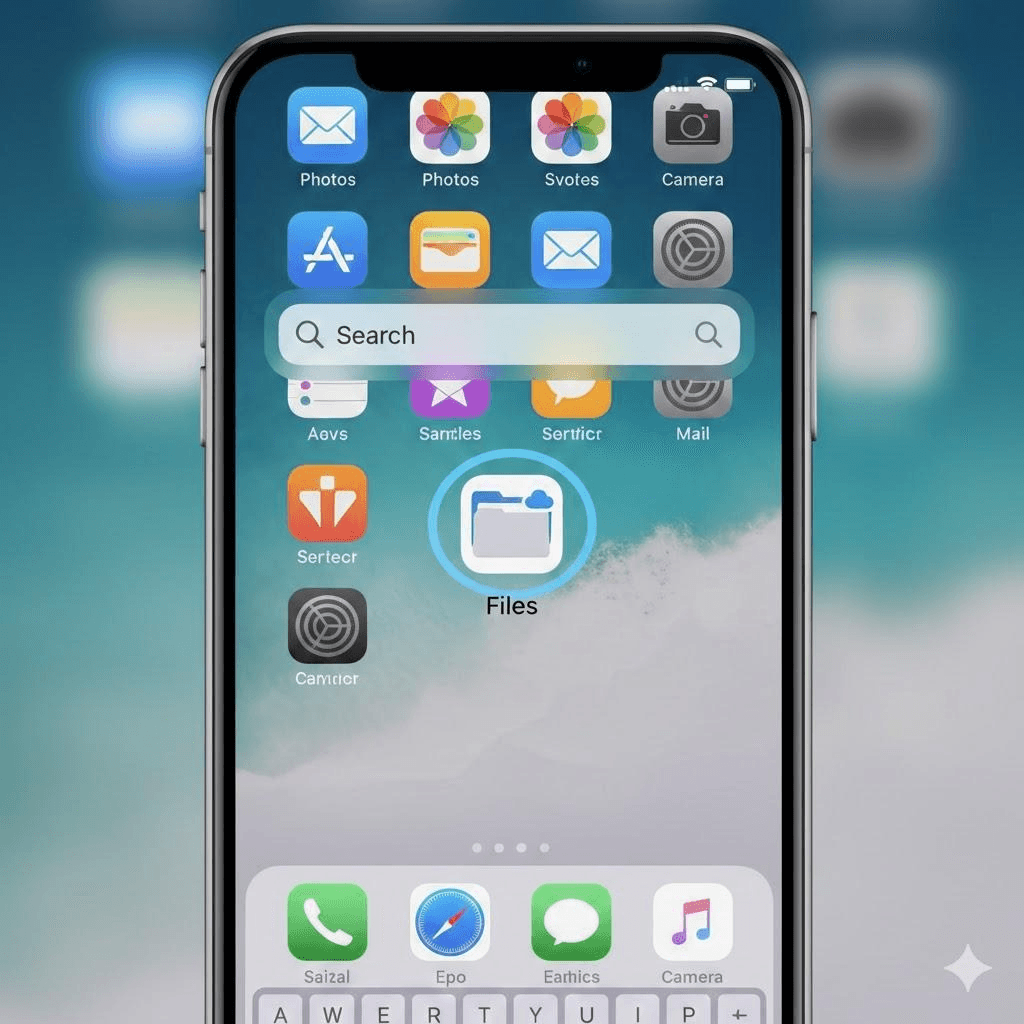
- Open the Files app. You can navigate to the app or search ‘Files’ using Spotlight Search on your iPhone home screen.
- Tap the browse tab at the bottom of the screen to display all storage locations.
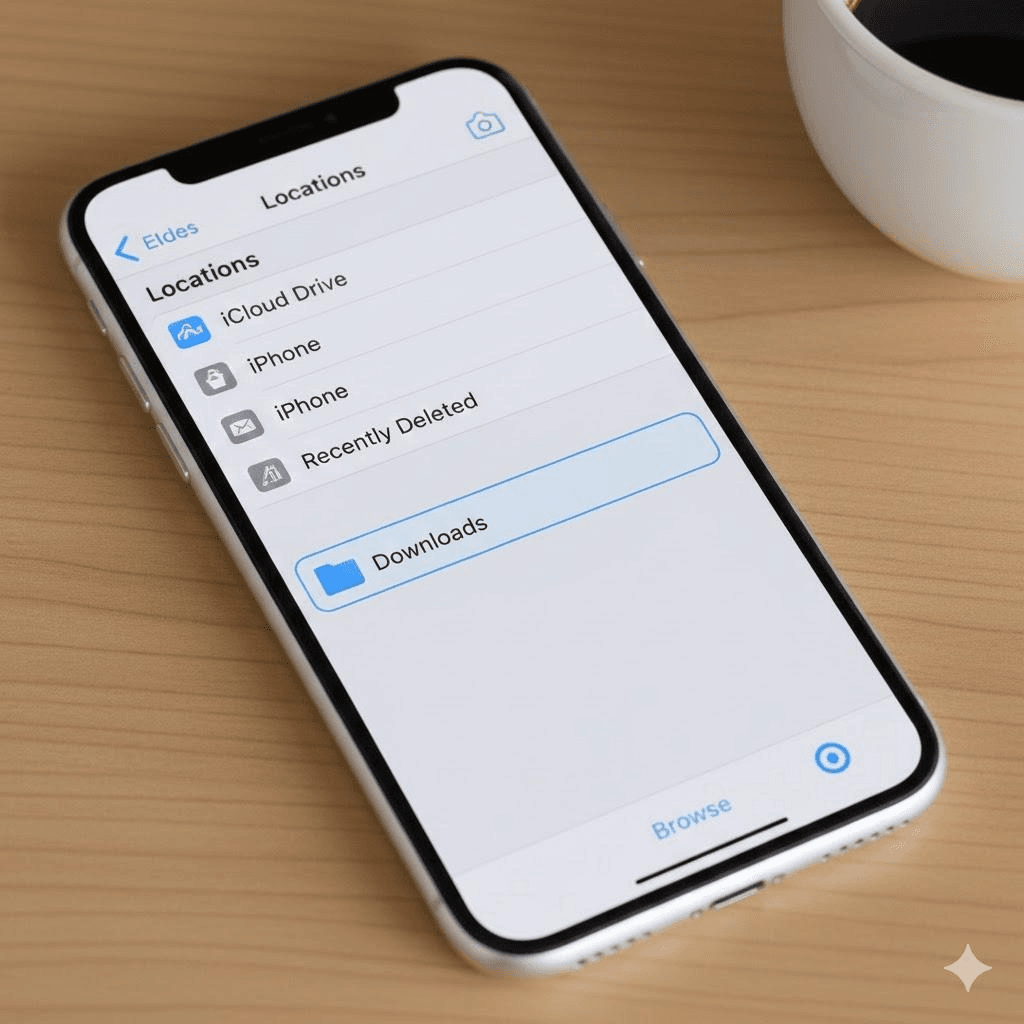
- In the locations, find your download folder.
Most downloads from Safari and other browsers are in the Downloads folder in the iCloud Drive parent folder. So, tap the iCloud Drive, then Downloads.
If you had changed the download settings, tap My iPhone/iPad. Then, look for your downloads in the folders there.
Manage your files
Once you find your downloaded file, you may tap it to preview it. Tap and hold it to bring up menu options like copy, share, delete, move, and rename.
How to find downloaded media files
While general documents go to the Files app, media content has a specialized storage area. Here is where to find those downloaded cat videos, memory photos, and your favorite music list.
Videos and photos
When you save a video or image from the web, it usually goes to the Photos app. Access these files with the steps below.
Open the Photos app
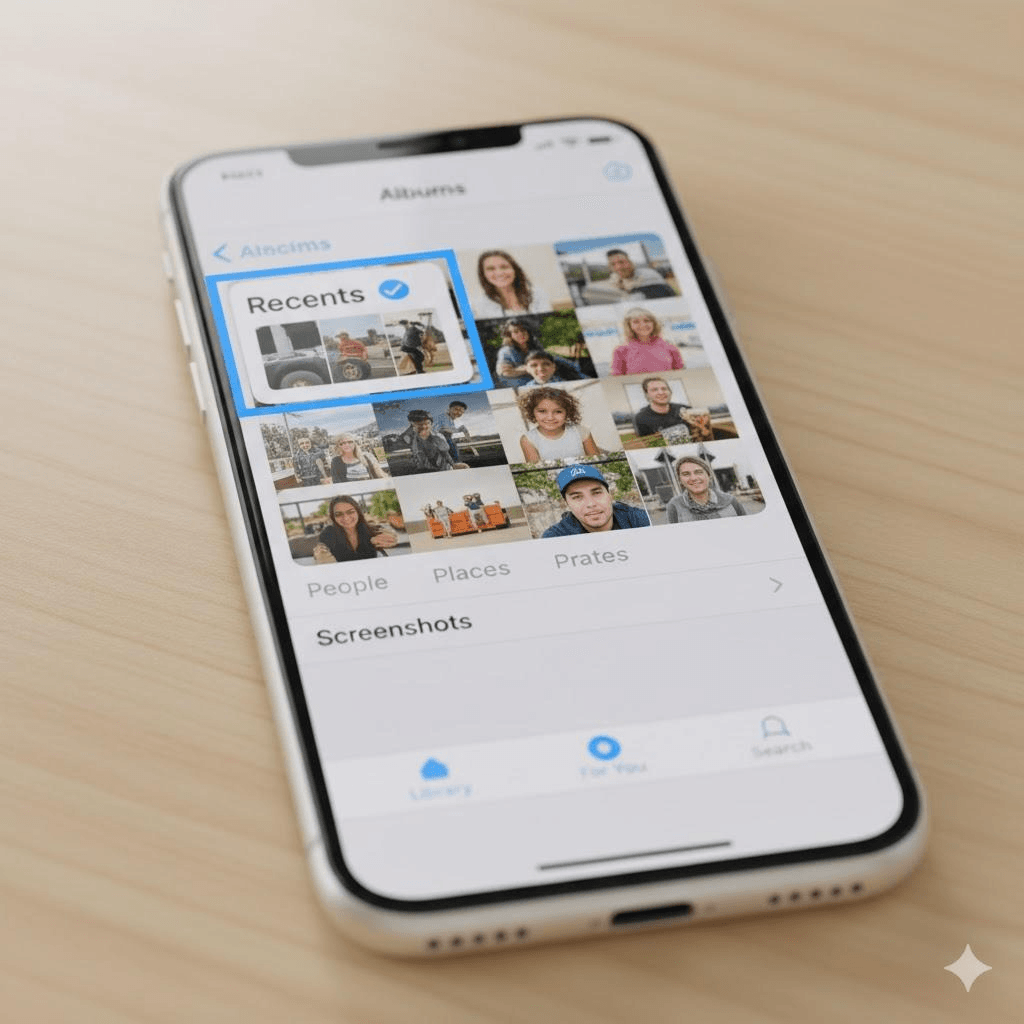
Locate the Recents album: You will find the most recent media in the album.
In some cases, a downloaded video or photo may appear in a different album. In that case, visit the Albums tab in the Photos and locate ‘Downloads.’
Some people use the File Download Manager for all downloads, including media. If you did so, visit the Files app and locate the Downloads folder. From here, you can move the media to Photos or just share it.
Audio and music
If you download music through a streaming service like Music Store or iTunes, it goes to the specific app on your device. Apple does this for management and copyright compliance reasons. Which app did you use to download music? Let’s explore.
- Apple Music
Apple Music downloads go to the Music app. To access it, click the Music app and tap the Library tab. Then, check the ‘Downloaded’ folder in your music files.
- Downloads from Third-party apps like Spotify
Music from third-party apps goes to the respective app’s cache. Visit the app you used to download the file. You can only play the music in that particular app. Besides, you cannot move it to any other location on your phone.
- Safari Downloads
All your audio file downloads from Safari go to the Downloads folder of the Files app. Visit the Files and locate your downloads folder. From this folder, locate the exact file you wish to play.
Applications
All app downloads from the App Store immediately install themselves onto your device. So, you don’t need to look for the downloaded files to install apps. Can't find them?
Access the app library by swiping left on your Home Screen. This library sorts apps into categories. Check the newly installed app at the top in the ‘Recently Added’ tab.
You may also use the Spotlight Search to get to the app. Type the name of your app in its search bar and click the result.
Can you customize the download location?
As you have seen, your downloads may be in so many locations. However, you can change where Safari stores your downloaded files. Change the download location using the steps below.
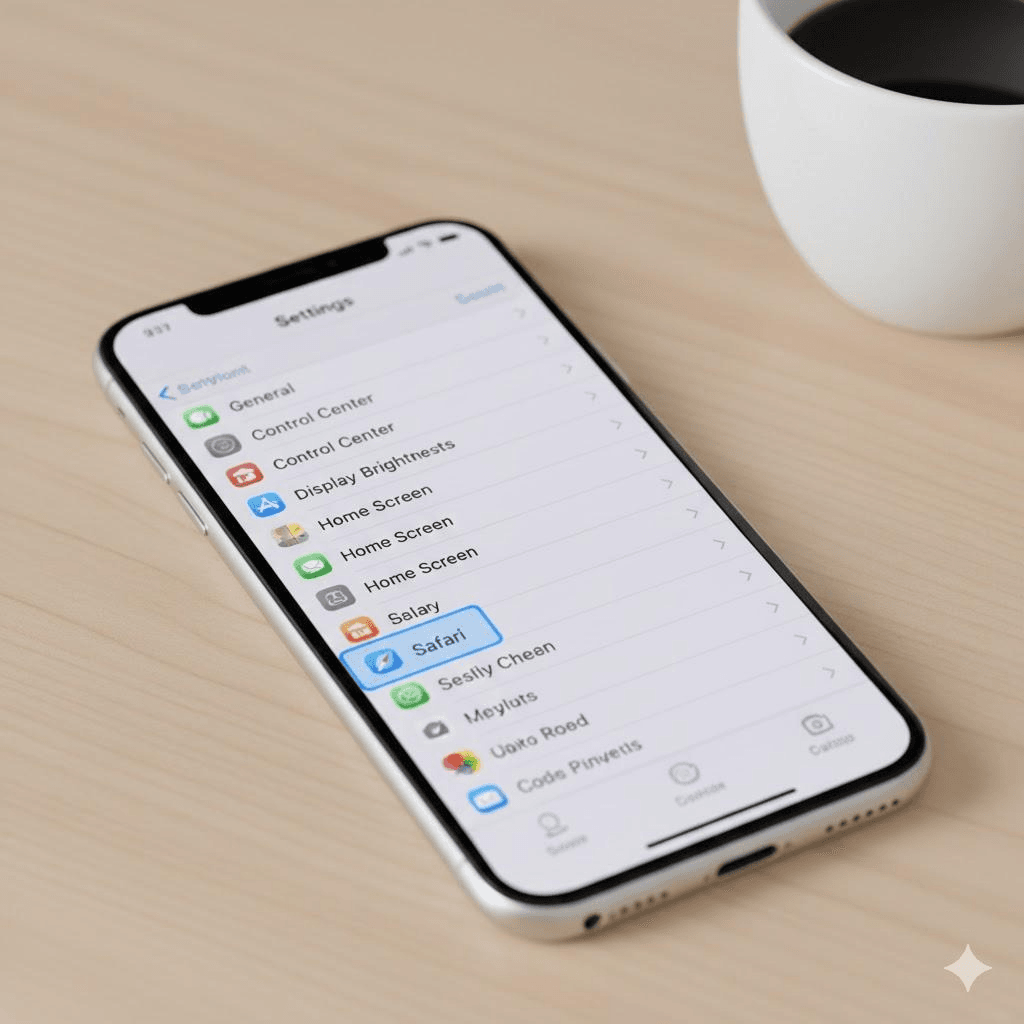
- Visit the settings app
- Select Safari from the main list
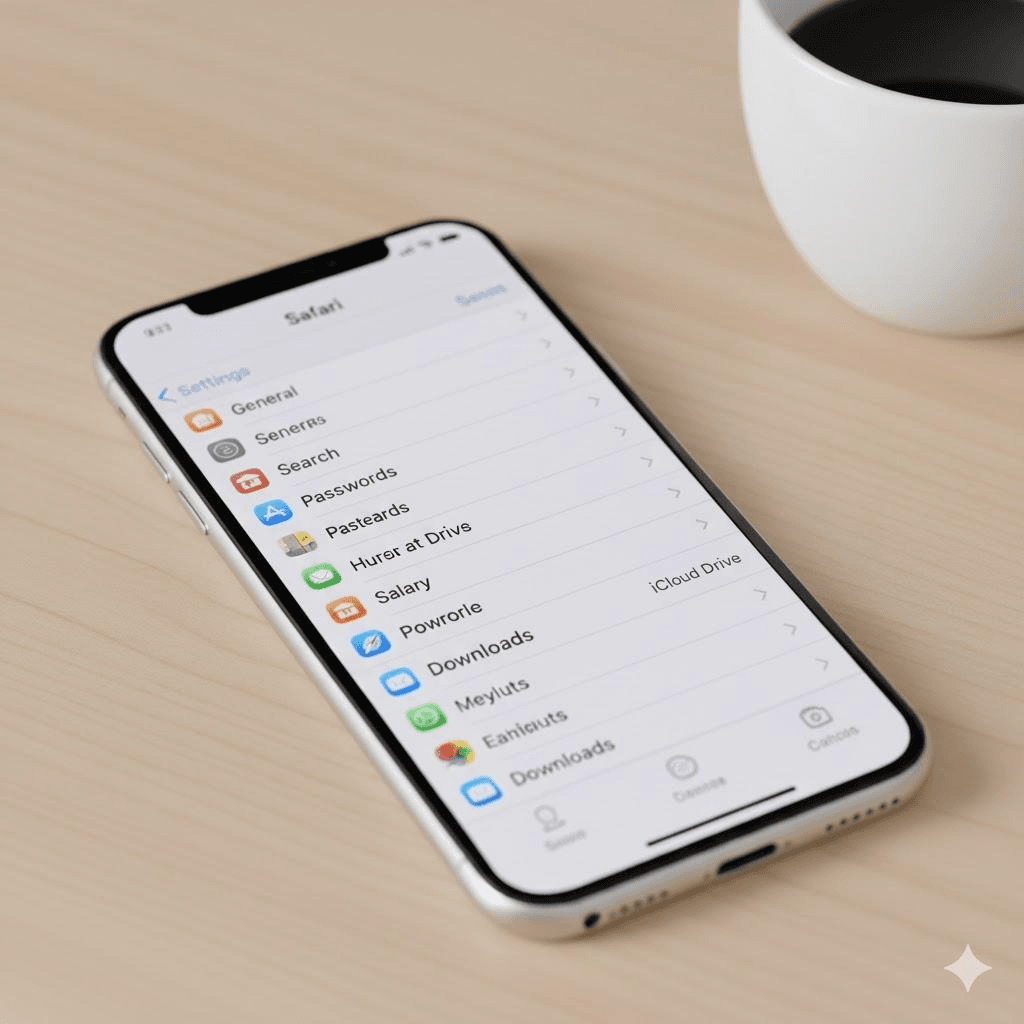
- Click the General folder and tap the ‘Downloads’ section
- Select the desired location
You have three save location options:
- iCloud Drive: This is usually the default save location. You access your files in the Downloads folder on all your signed devices.
- On My iPhone/iPad: Files save only to the local storage on the specific device you are using and do not automatically sync to the cloud.
- Other: This allows you to select any folder within the Files app. It includes folders created by third-party cloud services or a custom folder you have created.
Final thoughts
Sometimes getting your downloads on your iPhone can be daunting. However, this should not be the case if you understand the logic behind file placements. The Files app handles all the general downloads, while media files stay in their respective apps. If you download files regularly, customize a location where you get your downloads fast.
FAQs
I downloaded a ZIP file. How do I unzip it?
Files app has an unzip feature. When you tap the zipped file, the Files app creates a new folder next to the ZIP file. This file has all the extracted contents.
Do I save on iCloud Drive or my iPhone/iPad storage?
iCloud Drive is cloud storage. You can access files here on any Apple device signed into the same Apple ID. However, MyiPhone/iPad is local, physical storage on your specific device. Any file you save in here is only accessible when using that particular device.
Can I delete files in the Downloads folder safely?
Yes. You can delete any download file you don't need. Press and hold the file. Then, tap the 'Delete' option to remove it. Remove unwanted downloads regularly to free up space.