

AirPods redefined convenience for listening to music or watching videos, especially on the go. Versatile and wireless, the ingredients for a free, untethered entertainment and connection experience! All you need to do is charge them and put them on!
Facing challenges when setting them up? We break down the setup into easy steps so that you get your music and voice via AirPods fast.
Connect AirPods to an iPhone
Complete these actions before connecting:
- Check the iOS model of your device. It should run iOS 10 or later to connect. Newer AirPods may require later OS versions.
- See if the phone has pending updates in Settings> General > Software Update. Install any pending updates so it works smoothly.
- Enable Bluetooth. Settings> Bluetooth> Toggle the switch on.
- Charge your AirPods and the charging case so that you can use them for a long time.
The One-Tap setup
You can pair your AirPods with any iPhone in a few taps when you are signed into your iCloud account. It is the easiest method, as explained here.
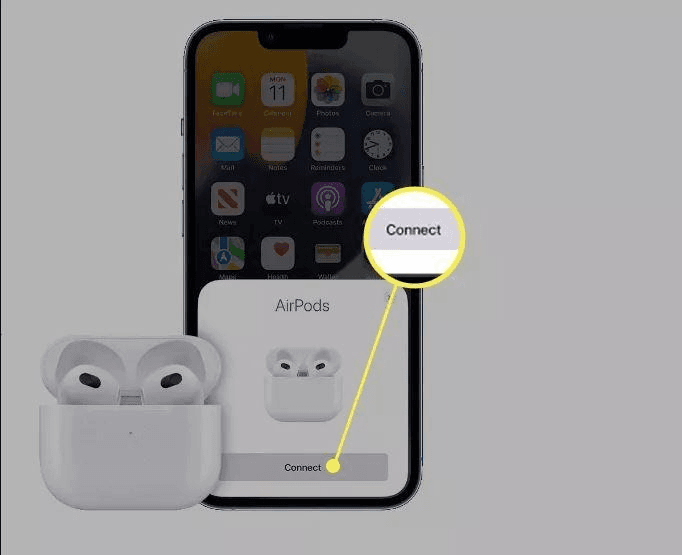
Step 1: Open the case near your iPhone
- Put your AirPods in the charging case.
- Place it next to your iPhone.
- Open the charging case.
Step 2: Look for the setup animation
- An image of your AirPods that asks if you want to connect will pop up.
Step 3: Connect
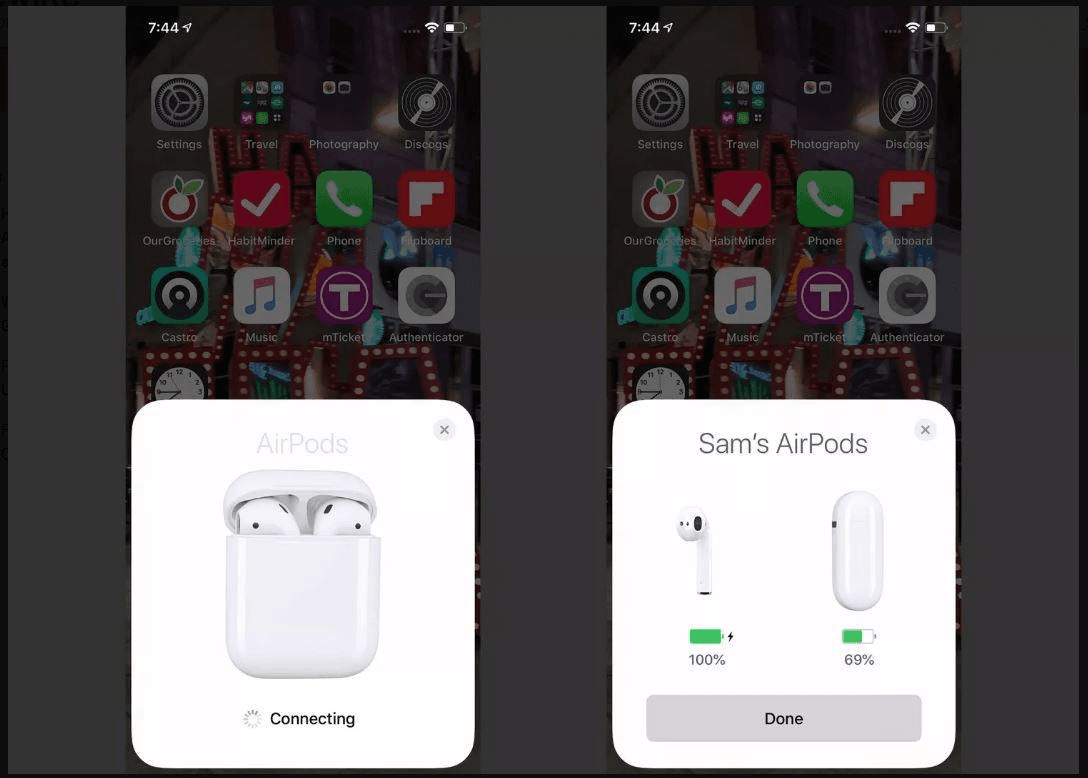
- Hit the Connect button to get started.
- Follow the animation guide for additional setup steps. Not sure what's right? Read a preview of the features before setup.
Step 4: Complete the setup
- Tap done.
You can also check the battery status of your AirPods before closing the setup.
Step 5: Start your media and enjoy the sound!
- You can use AirPods on all your iOS devices. However, you don't need to set them up on other devices. You will find AirPods in the Bluetooth Settings on these devices.
Manual setup
No pop-up animation surfaces? Use the Bluetooth for the connection:
Step 1: Put the AirPods in pairing mode
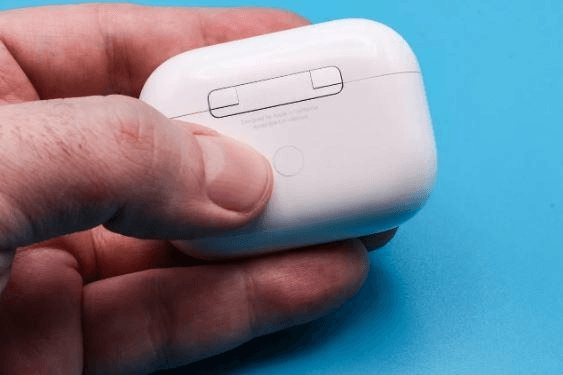
Here’s how to go about it:
1. Keep the charging open to get started.
2. Turn the charging case at the back and locate a button.
3. Press the button for about five seconds or until the case flashes white (pairing mode).
Step 2: Connect to Bluetooth
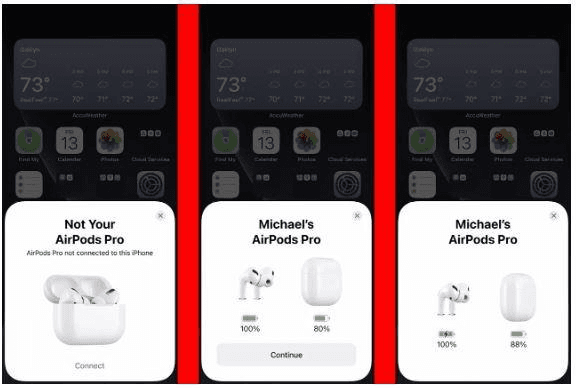
- Head to Settings > Bluetooth on your device.
- Check the ‘other devices’ list in the Bluetooth list.
- Tap your AirPods from this list.
- Onscreen prompts will ask you to complete the connection. Follow them.
Enjoy your sound!
Easy connection fixes
Try any of these options to fix connection issues.
1. Check Bluetooth
If it’s not on, enable it.
2. Try restarting both devices
For AirPods, do the following:
- Return AirPods to your charging case.
- Close the lid and wait for 30 seconds.
- Open and use your AirPods.
3. Reset your AirPods
Consider resetting your AirPods if everything else fails. This fix forgets all previous settings and pairings.
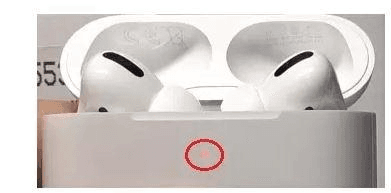
- Open the charging case, but don’t remove the AirPods.
- Press and hold the setup button for about 15 seconds. You will see the status light turn from amber to white. White means they are fully reset.
Changing your AirPods settings
Your AirPods can detect when you remove them from your ears and can also control Siri. You activate all this from your device.
- Go to Settings > Bluetooth on your iPhone.
- Find the “i” icon next to your AirPods
Select any of the options below.
- Give your AirPods a new name.
- Determine controls for play/pause, skip, or activate Siri.
- Enable music pause when you remove an AirPod from your ear (automatic ear detection).
- Set the AirPod that acts as the microphone.
Conclusion
Setting up your AirPods takes a minute or two. Use the built-in setup or head to Bluetooth. There should be no connection issues as long as the Bluetooth is on. You can also use your AirPods across all your iOS devices. Facing connection issues? Just restart your iPhone and the AirPods, or just reset the AirPods.